Create Hosted Service
Creating a Hosted Service is a guided, four-step wizard launched by clicking + Get New Service on the list page.
The available technologies and providers depend on what the administrators of your account have configured. The following steps use PostgreSQL and Redis as examples.
How it works
Before showing you anything, CodeNOW checks every cluster connected to your account for the providers actually available there. This drives each step of the wizard in order:
- The Technology catalog only lists a technology if at least one connected cluster has a provider that can run it
- Once you pick a technology, the Environment step narrows down to environments running on a cluster where such a provider is available
- Once you pick an environment, the Provider step only shows the providers available on that environment's cluster
Each step narrows down what makes sense to pick next, based on what's actually deployable — you won't be offered a combination that doesn't exist anywhere, and you won't find out it's unsupported only after configuring it.
Step 1 — Technology
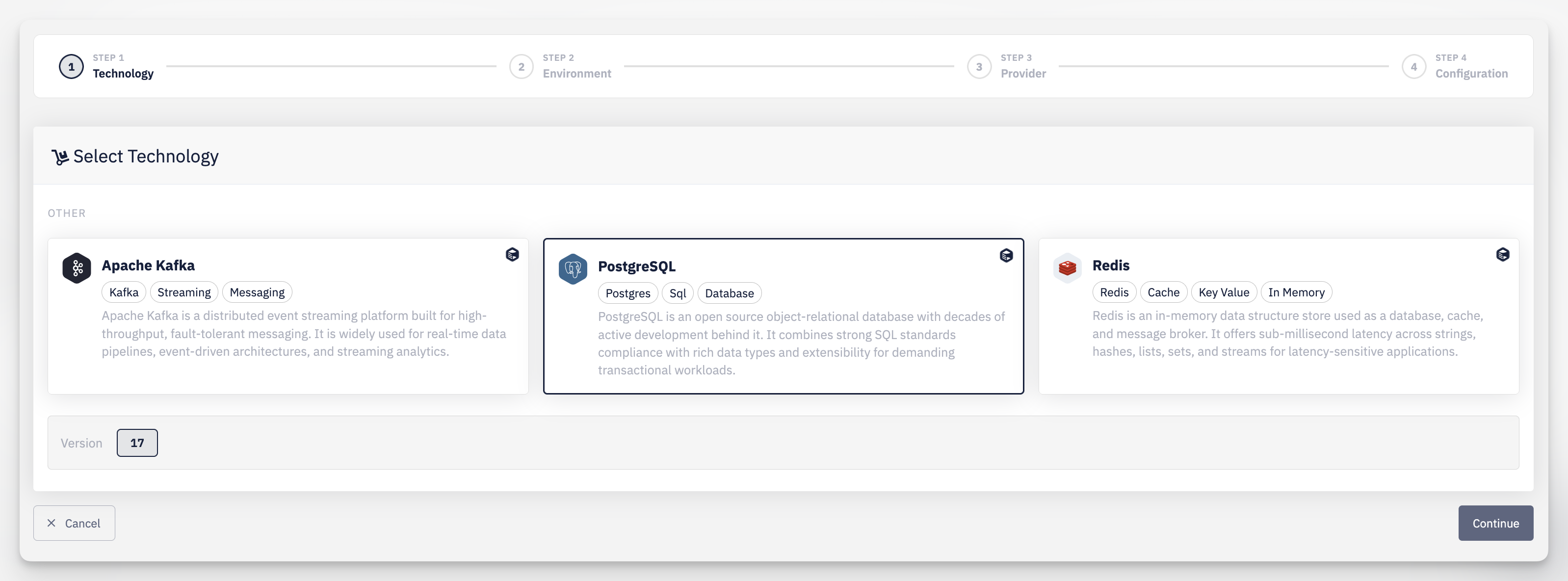
Browse the catalog of available technologies, grouped by category, each shown as a card with its icon, a short description, and tags. Select the technology you want to provision (e.g. PostgreSQL), then pick its Version.
Step 2 — Environment
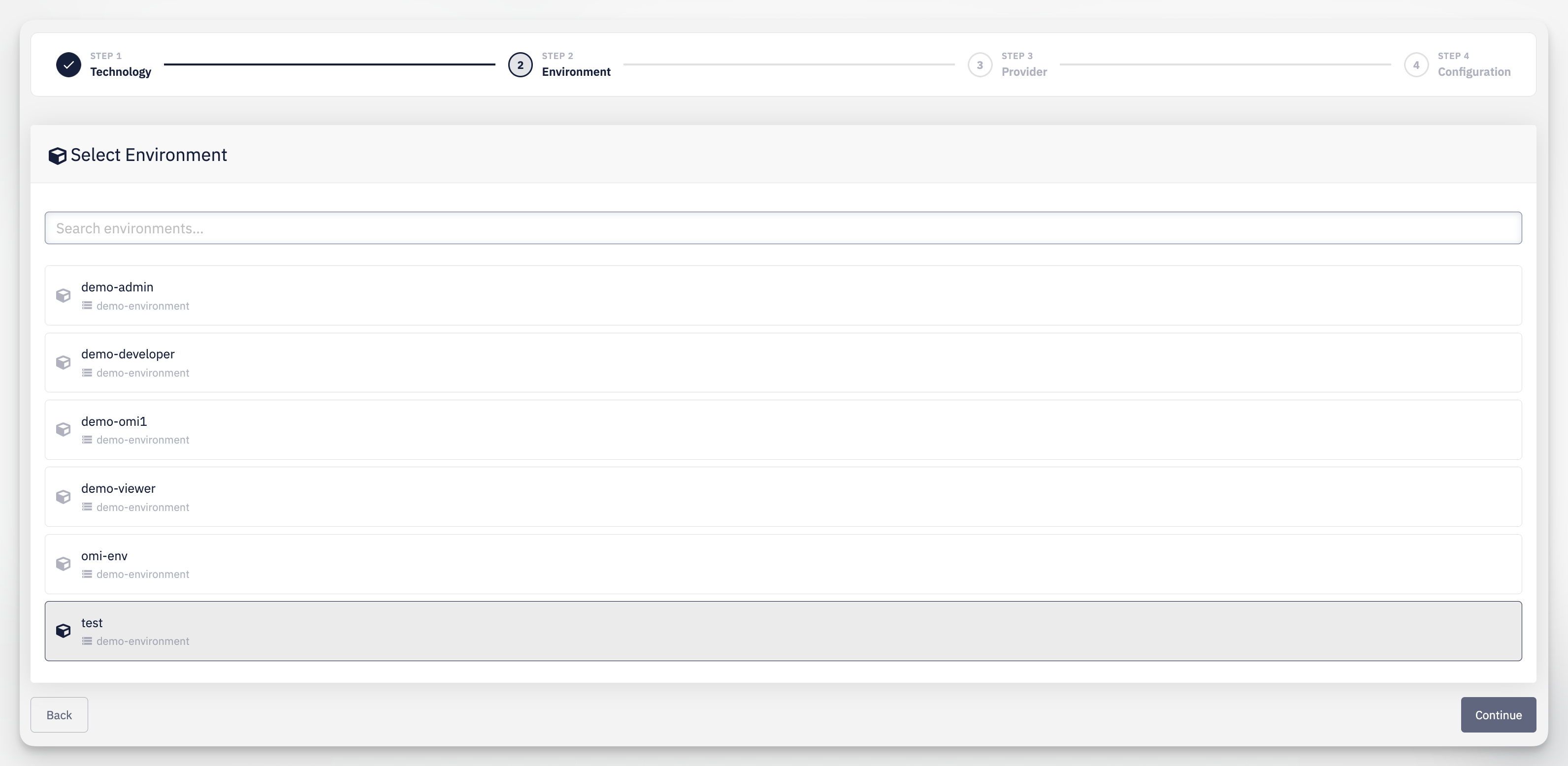
Search and select the Environment where the service will run. The list is filtered to environments where the technology and version chosen in Step 1 is actually available.
Availability is reported by the infrastructure that environment runs on, not chosen by you — if the selected technology and version isn't supported there, it simply can't be offered. This is checked upfront so you don't pick a combination and find out later that it doesn't work.
Step 3 — Provider
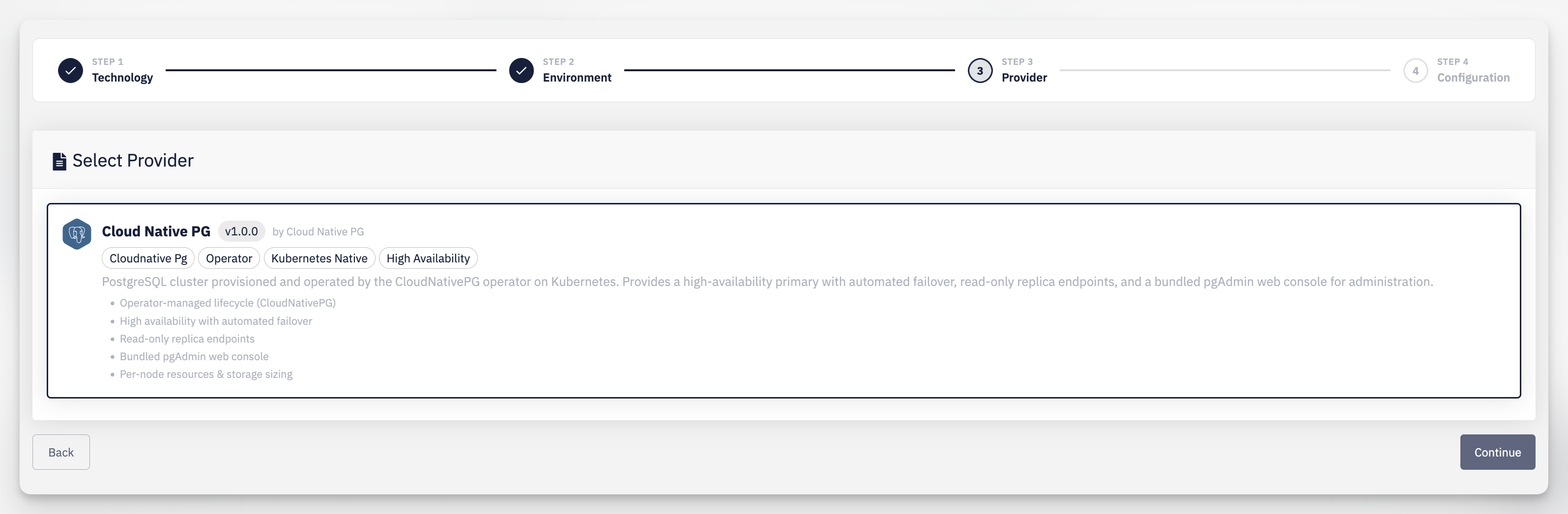
For the selected technology and environment, choose a provider — a specific way of running that technology. Each provider is shown as a card with its name, version, vendor, tags, a short description, and a list of features.
Step 4 — Configuration
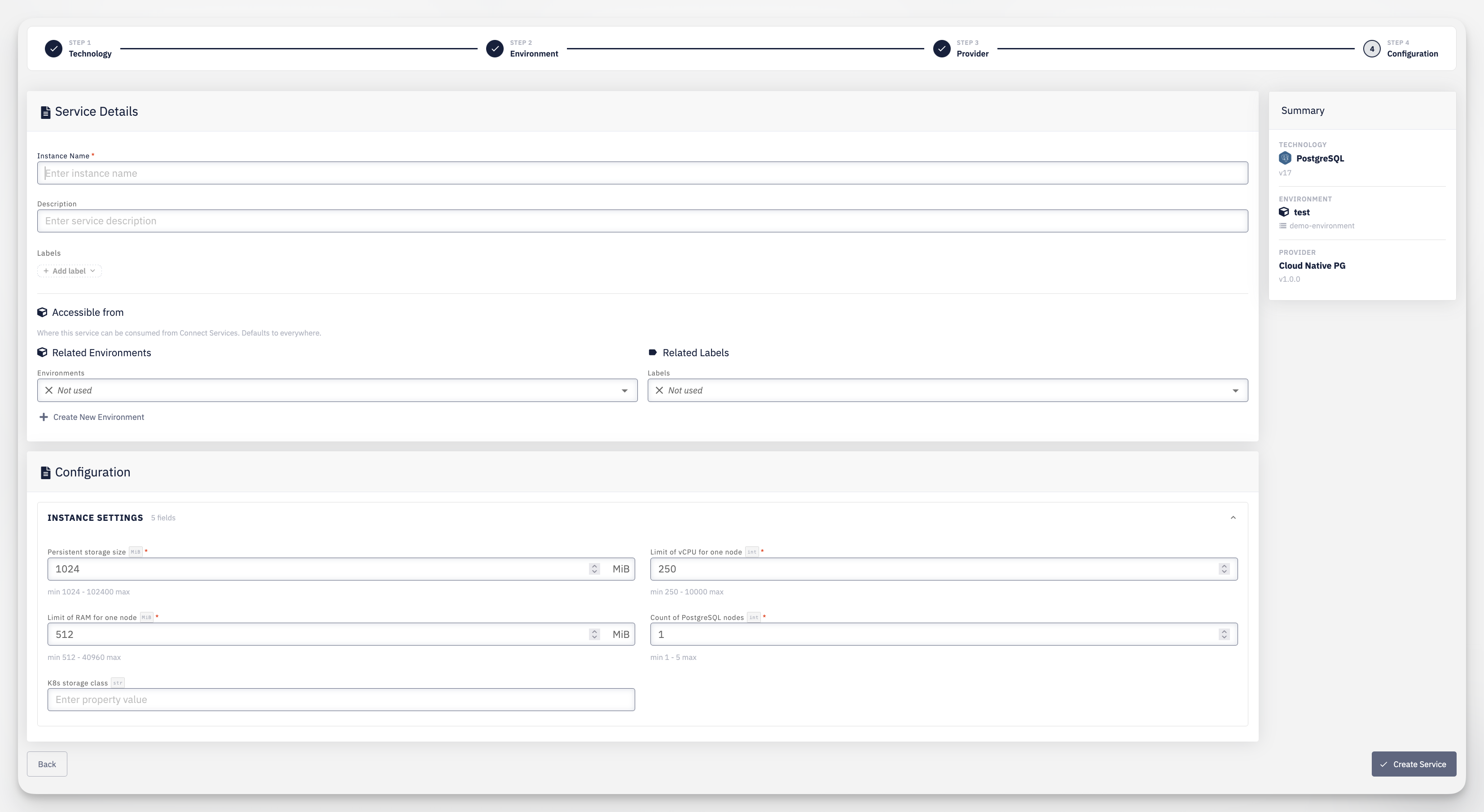
- Service Details — Instance Name, an optional Description, and Labels
- Accessible from — optionally restrict which environments or labels can connect to this instance via Connect Services right away, instead of configuring it later on the service detail page. Defaults to everywhere (both Related Environments and Related Labels left as Not used). See Service Availability for the full rules
- Configuration — provider-specific configuration fields (e.g. resource limits, node counts, storage class); the available fields depend on the provider selected in Step 3
- Summary — a recap of the chosen Technology, Environment, and Provider
Click Create Service to provision the service.