Hosted Service Detail
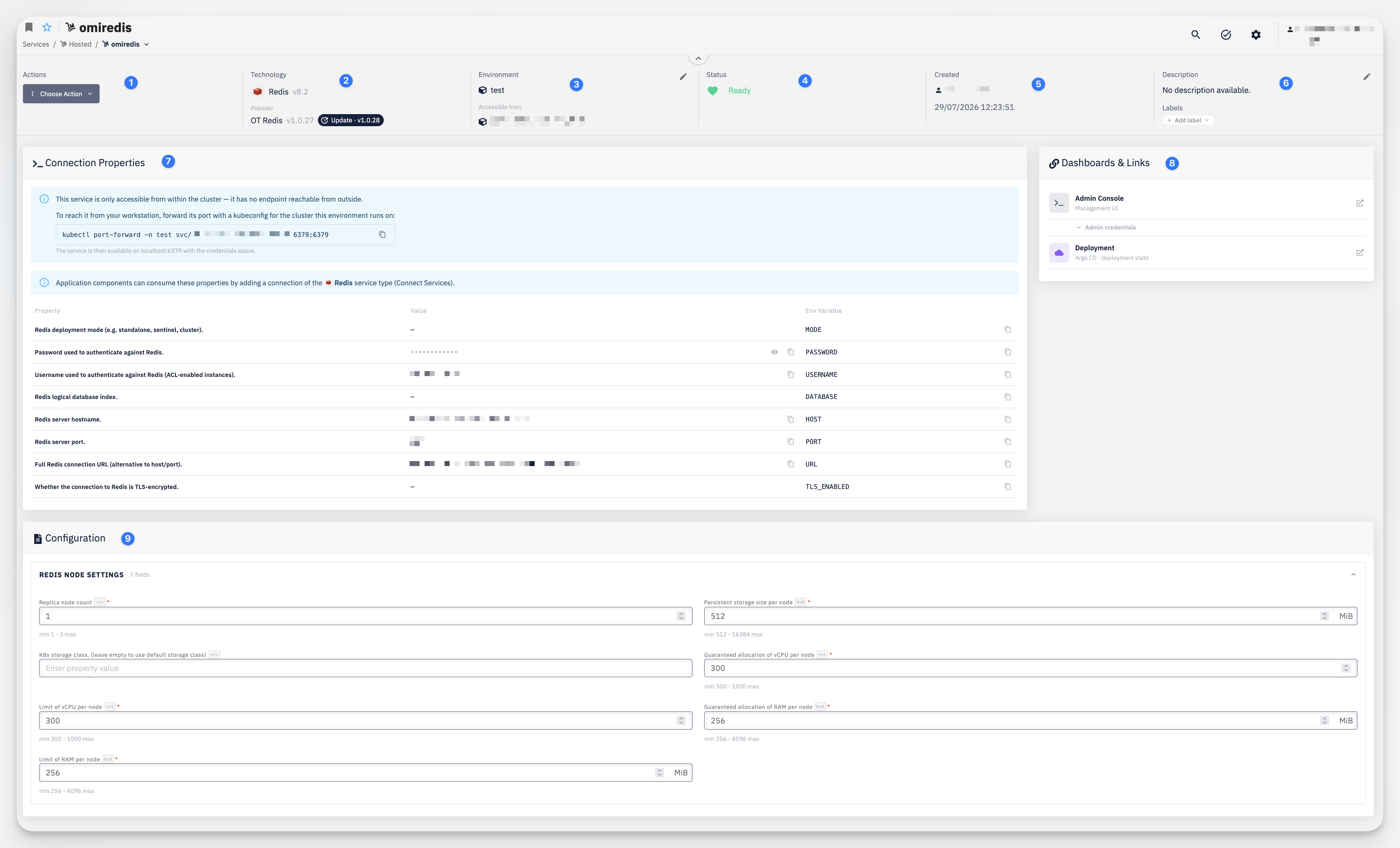
- Actions — Choose Action menu with access to Settings > Permissions and Delete
- Technology — the technology and version this instance is based on (e.g. Redis v8.2) and, below it, the Provider and its version. When a newer provider version is available, an Update badge appears next to it — see Updating the Provider
- Environment — the environment this instance is deployed to (editable via the pencil icon) and, below it, a summary of Accessible from — see Accessible From
- Status — the current health status of the service (e.g. Ready)
- Created — the user who created the instance and the creation date
- Description — a short description of the instance; Labels attached to this service
Connection Properties
The Connection Properties card shows how to reach the service and lists every property your application components can consume:
- If the service has no endpoint reachable from outside the cluster, a note explains how to reach it from your workstation via
kubectl port-forward, using the cluster the deployment environment runs on - A note points out that application components consume these properties by adding a Connect Services connection of the matching service type
The properties table has three columns:
| Column | Description |
|---|---|
| Property | A short description of what the value is (e.g. Password used to authenticate against Redis.) |
| Value | The property's current value; secret values are masked, with an eye icon to reveal them |
| Env Variable | The name of the environment variable a connected application component will receive for this property |
The Env Variable column is the reason this table exists: it's what ties this service's configuration to what your application actually sees at runtime — see Connect Services for how the full variable name is composed.
Dashboards & Links
A separate card lists quick links relevant to this instance — for example an Admin Console (with a collapsible section for its credentials, if any) and a Deployment link to the deployment state in the CD tool. The exact set of links depends on the technology.
Accessible From
Editable via the pencil icon next to Environment, using the same Related Environments / Related Labels controls as at creation. See Service Availability for the full rules — Hosted Services use the Environments and Labels axes only; there is no Clusters axis, since a hosted instance already runs on a single, fixed cluster.
Configuration
The Configuration card shows the provider-specific settings for this instance (e.g. resource limits, node counts, storage class) — the same fields offered in Step 4 of the create wizard.
Updating the Provider
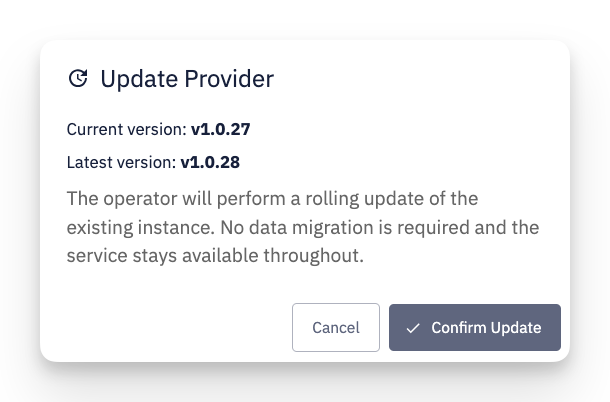
When a newer provider version is available, clicking the Update badge opens the Update Provider dialog:
- Actionable (patch update) — the dialog shows the current and latest version and explains that the operator will perform a rolling update of the existing instance, with no data migration required and the service staying available throughout. Click Confirm Update to apply it
- Informational only (minor/major update) — the badge is purely informative, with no action available from the platform. Moving to a higher minor or major version requires a manual migration, which this notice does not perform