Create a New Library
To create a new library, click the + Create New Library button in the top-right corner of the Library List.
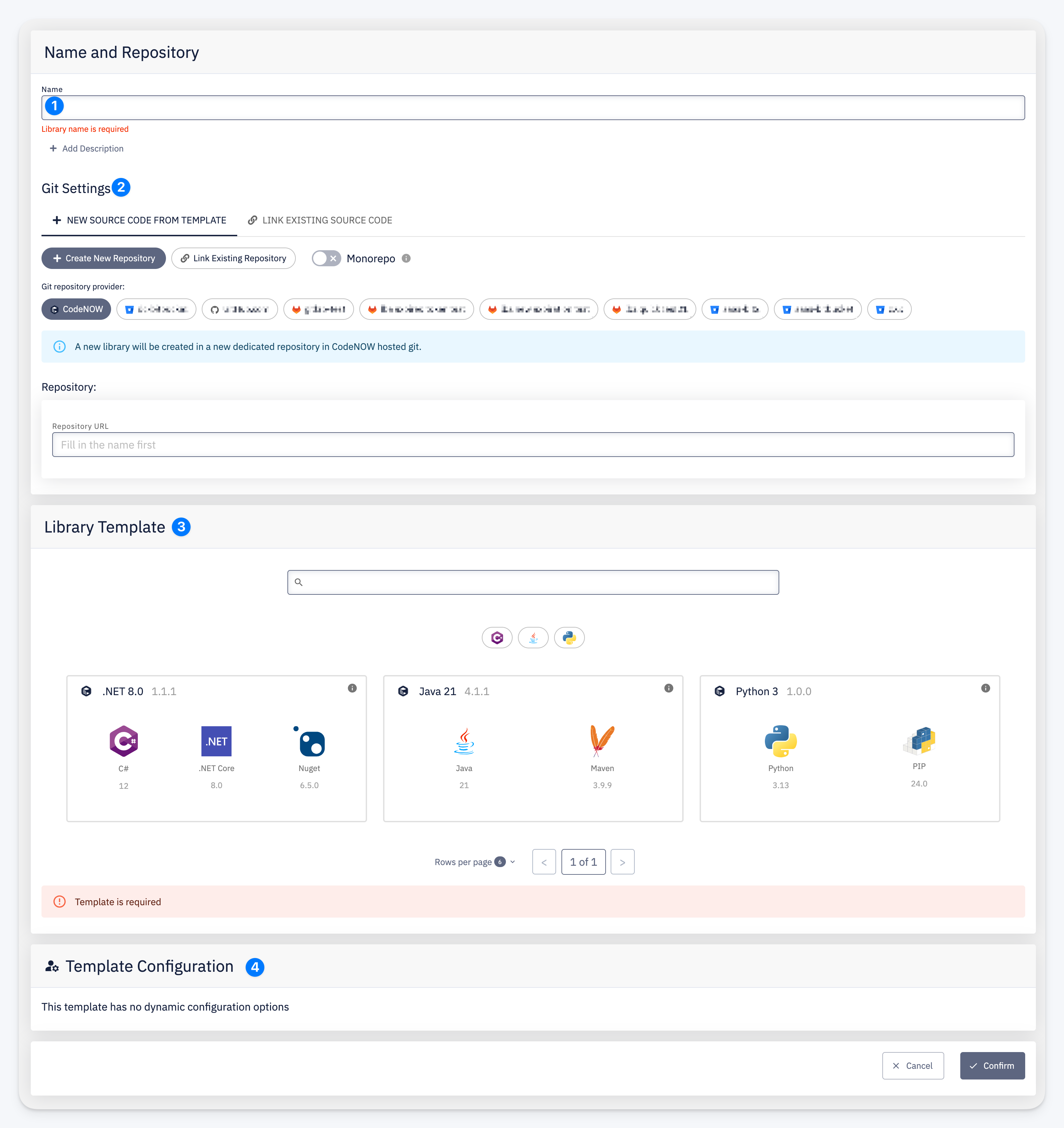
- Name and Repository — enter a library name and optionally click + Add Description to provide a description. The repository URL is generated automatically based on the name.
- Git Settings — configure how the source code repository is created or linked. Choose between creating a new repository from a template or linking an existing one, select the Git provider, and optionally enable monorepo mode.
- Library Template — search and select a technology template. Each card shows the stack, version, and included technologies. Available templates depend on your platform configuration.
- Template Configuration — some templates offer additional configuration options. If the selected template has no dynamic options, this section displays a notice.
Click Confirm to create the library. After creation you are redirected to the Library Detail page.
Supported Technology Stacks
The available library templates depend on your platform configuration, but commonly include:
- Java 21 (Maven)
- .NET 8.0 (NuGet)
- Python 3 (PIP)
tip
The list of available templates can be extended by defining custom library templates.