Create Component
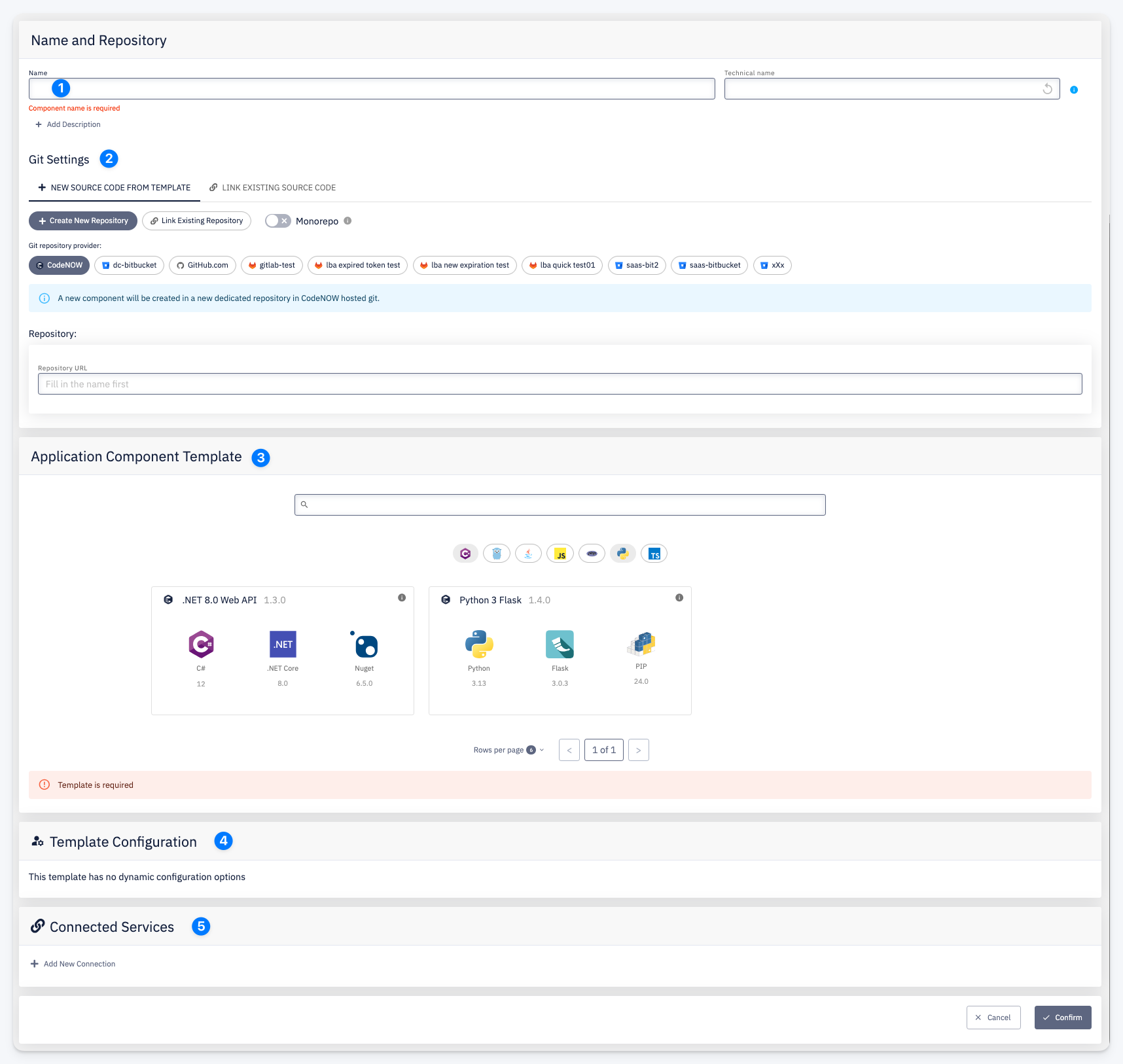
To create a new application component, open the application detail and select Choose Action > Create New Component.
-
Name and Repository — the component name and its auto-generated technical name used in pipelines and configurations. Use + Add Description to optionally add a description.
-
Git Settings — configures the source code repository for the component:
- New Source Code from Template — creates a new repository scaffolded from the selected template
- Link Existing Source Code — connects an existing repository to this component
- Choose a Git repository provider (CodeNOW hosted git or an external provider), then specify the repository. Enable Monorepo if the component shares a repository with other components.
-
Application Component Template — select the technology template for the component. Each template defines the technology stack (language, framework, package manager) and the initial project structure. Templates are filtered by technology type using the icons above the list.
-
Template Configuration — dynamic configuration options specific to the selected template. If the template has no configurable parameters, this section shows This template has no dynamic configuration options.
-
Connected Services — optionally add a binding to a Service Template for this component at creation time, declaring that it needs a service of that type. Which concrete Hosted or Connected Service instance fulfills it is decided later, per environment. Use + Add New Connection to add a connection.
Click Confirm to create the component.