Deploy
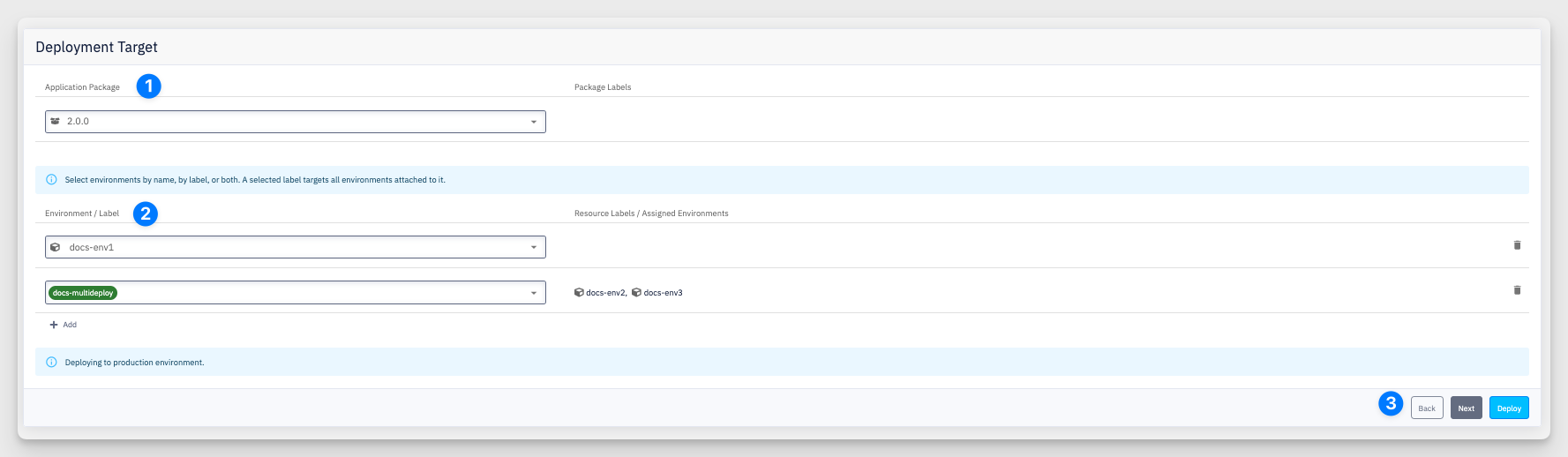
The Deploy action opens the Deployment Target dialog, where you choose which application package to release and where to release it. It is available from the Choose Action menu and the + Deploy button in the Deployments section.
-
Application Package / Package Labels — select the package version to deploy. Package Labels shows the labels attached to the selected package.
-
Environment / Label — select targets by environment name, by label, or both. A selected label targets every environment attached to it, listed under Resource Labels / Assigned Environments (e.g. the
docs-multideploylabel expands todocs-env2anddocs-env3). Use + Add to add another row, or the trash icon to remove one. -
Back / Next / Deploy — navigate the wizard; Deploy triggers the deployment to all selected targets.
Production confirmation
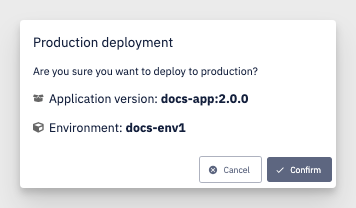
When any target is a production environment, CodeNOW asks for explicit confirmation before deploying. The dialog restates the Application version and Environment so you can verify them before continuing.
Deploying to multiple environments at once — for example through a label — starts a single Deploy Application job that tracks the rollout to each target.