Agent Gateway
The Agent Gateway is the single entry point for AI traffic in a CodeNOW account. Every account has at most one Agent Gateway, installed on one of the account's data planes. It:
- routes calls from agents to language models, MCP servers and other agents,
- authenticates every inbound call with a CodeNOW token and checks that the caller belongs to the account,
- exposes the CodeNOW MCP server and the MCP servers of the data planes' infrastructure tools to agents and to your own MCP clients,
- records LLM traffic, which you can inspect in Logs and Analytics.
The gateway of a data plane is reachable at https://agent-gateway.<data plane host>/.
Technical names that you may meet literally — the ai_gateway permission resource, the AI_GATEWAY_URL and AI_GATEWAY_REFRESH_TOKEN environment variables, or the <account>-ai-agents client — are kept for compatibility. They all refer to the Agent Gateway.
Enabling the Agent Gateway
The Agent Gateway is switched on per account in Account Settings › AGENT GATEWAY (Account Settings open from the gear icon in the top bar). The Agent Gateway card shows the Enabled switch; click Edit, change the switch and Confirm.
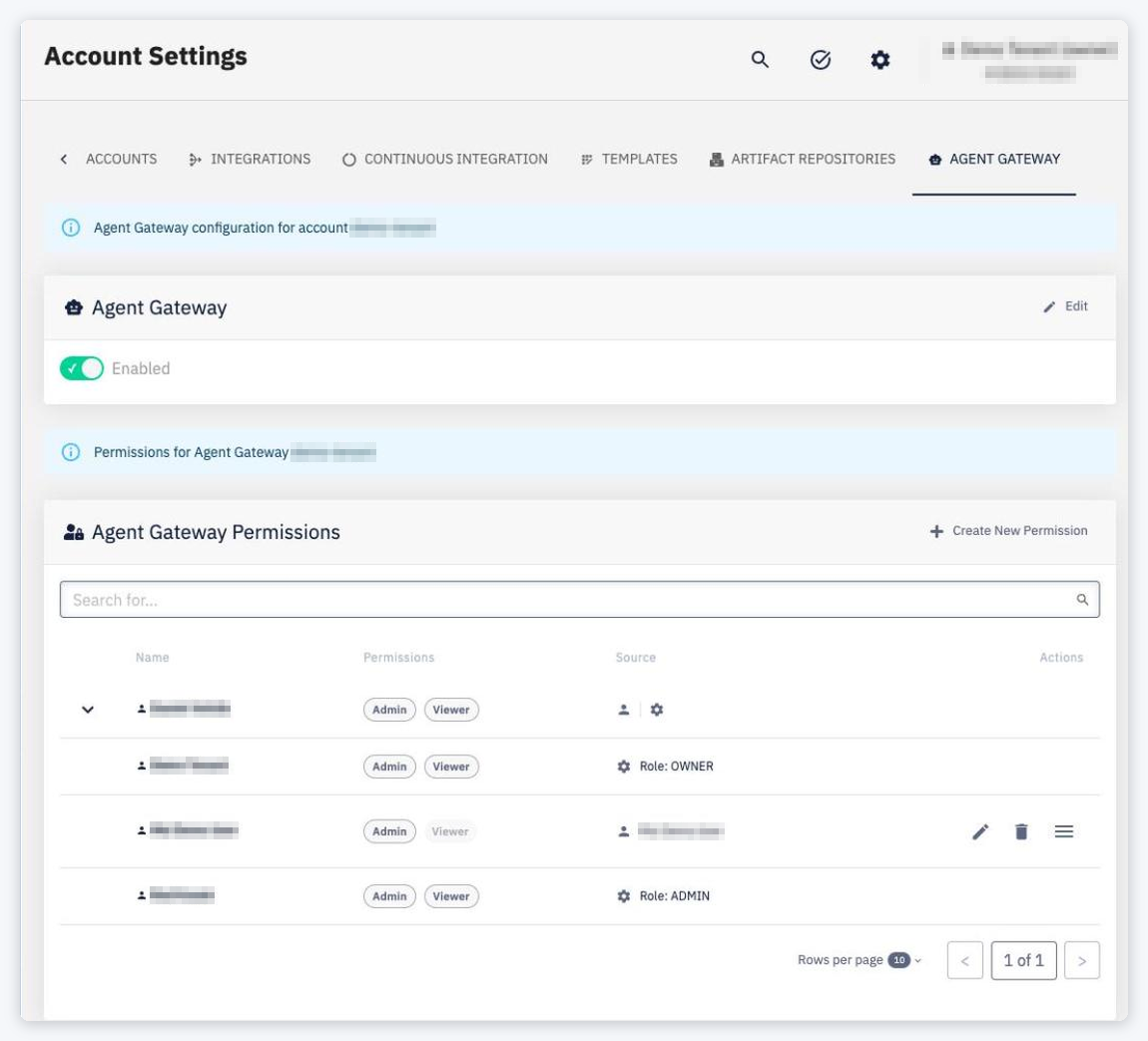
Only an account Owner or Admin can change the setting — Account Settings are available only to them. The Agent Gateway Permission Manager account permission does not allow switching the gateway on or off; it only allows managing the permissions. (Should a non-admin ever reach the tab, Edit is disabled with the tooltip Only account owners and admins can enable or disable the Agent Gateway.) The setting is off by default.
Agents can be created only when both conditions hold:
- the Agent Gateway is enabled for the account, and
- an Agent Gateway is installed on one of the account's data planes.
Otherwise the UI disables Create New Agent Swarm and the creation of agents, with the reason in a tooltip (The AI feature is disabled for this account. Contact your CodeNOW account administrator to activate it.), and the Create Agent page shows Agent Gateway is not enabled for this account. Enable it in Account Settings before creating an agent. Through the API, creating an agent fails with one of these messages:
| Situation | Message |
|---|---|
| The setting is off | AI feature is disabled for this account. Agent components cannot be created. |
| No gateway on any data plane | Agent Gateway is not installed on any data plane of this account. Agent components cannot be created. |
| The installation cannot be checked right now | Cannot verify that the Agent Gateway is installed (customer-cluster unavailable). Try again later. |
The check applies to creating agents only. Existing agents and agent swarms can still be deployed; their deployment reports which agents could not be registered in the gateway (see Deploy & Undeploy).
Installing the Agent Gateway on a data plane is part of the data plane installation and is done by your CodeNOW operator.
MCP servers available through the gateway
When a gateway is installed, CodeNOW registers MCP servers in it automatically and keeps the registration up to date:
- the CodeNOW MCP server (see MCP Server), and
- the MCP servers of the infrastructure tools running on the account's data planes.
The registration is refreshed whenever a data plane of the account reports a change (an MCP server added or removed, a data plane deleted, the gateway installed or uninstalled). Each refresh runs as a Synchronize Agent Gateway job, visible to account owners and admins in the job list. Runs for one account are processed one after another. The job detail lists each data plane with the Reason (Registrations updated / Registrations deleted) and the Result (n registered · n removed · n skipped), and offers Retry.
Calls through the gateway carry the caller's own token to the MCP server, so the MCP server applies the caller's own CodeNOW permissions.
MCP endpoints
The gateway exposes MCP servers on two endpoints:
| Endpoint | MCP servers |
|---|---|
https://agent-gateway.<data plane host>/mcp/codenow | Managed by CodeNOW — the CodeNOW MCP server and the Grafana MCP server of each data plane |
https://agent-gateway.<data plane host>/mcp/external | MCP servers your organization registers in the gateway itself, outside the CodeNOW portal |
Registering your own MCP servers
Account administrators can register their own MCP servers in the gateway by adding gateway manifests. These servers are available on the /mcp/external endpoint.
CodeNOW keeps the gateway's manifests in the account's managed-components GitOps repository, the same repository that holds the account's managed services, environments and custom domains. By default, CodeNOW creates it as the project customer-managed-components in the group <account ID>-codenow-cd on CodeNOW's SCM:
https://<CodeNOW SCM host>/codenow/<account ID>-codenow-cd/customer-managed-components.git
The repository is not shown in the CodeNOW portal. If you cannot find it at this path — for example because your account's technical repositories were provisioned outside CodeNOW and have a different name and location — or you need access to it, ask your CodeNOW operator.
Your organization's MCP servers are registered from a folder of your own in this repository, synchronized separately from the folders that CodeNOW owns. For now, add complete Agent Gateway manifests there — the backend, route and policy resources for each of your MCP servers. Registering external MCP servers from the CodeNOW portal is planned for a later release.
The folders owned by CodeNOW are:
| Folder | Content |
|---|---|
agent-gateway/codenow-mcp/ | The CodeNOW-managed MCP servers (/mcp/codenow) |
agent-gateway/deployed-agents/<environment>/<agent swarm>/ | Gateway registrations of deployed agents |
To keep CodeNOW from overwriting or removing your MCP servers:
- Never put your manifests into
agent-gateway/codenow-mcp/oragent-gateway/deployed-agents/. These folders are owned by CodeNOW; their content is overwritten and pruned on every synchronization. - Do not use the reserved resource names: names starting with
codenow-mcp, and names following the agent pattern<agent swarm>-<environment>-<agent>. Give your resources a prefix of your own, for exampleext-.
Permissions
Access to the gateway's console (Logs, Analytics) is controlled by permissions on the account's Agent Gateway resource. There is one such resource per account and no per-instance grants — a level always applies to the account's Agent Gateway. The permissions gate the console only: agents calling models and MCP servers through the gateway need no Agent Gateway permission. For general information about permissions see Common Features — Permissions.
| Level | What it allows |
|---|---|
| Viewer | Read-only access to the Agent Gateway console (Logs, Analytics) |
| Admin | Manage the Agent Gateway console — models, MCP targets and settings |
Levels can be granted to users, teams and service accounts, never to all users. Account Owners and Admins manage them on the Agent Gateway Permissions card of Account Settings › AGENT GATEWAY (Create New Permission) — the card is available even while the Agent Gateway is disabled. Agent Gateway Permission Managers who are not account admins cannot open Account Settings or user details. In the UI they can grant levels only to a team they are a member of — on its team detail via Choose Action › Add Permission or the PERMISSIONS tab, resource type Agent Gateway. (Managers of a service account can also add Agent Gateway levels on its PERMISSIONS tab, within the owner's limit.) The levels also appear in the permission lists of individual users, teams and service accounts.
Who may grant these levels:
- account Owner and Admin — they hold both levels implicitly, without a grant;
- holders of the account permission Agent Gateway Permission Manager (
ai_gateway-permissions-manager). It can be granted to a user or a team, never to all users. Being an Agent Gateway admin does not by itself allow granting levels to others.
A service account can be given a level only within its owner's permissions.
Changes take effect at the next sign-in or token refresh. Access tokens of service accounts are valid for up to 10 minutes.
Logs and Analytics
The main navigation has an AI section with Agent Swarms and a collapsible Agent Gateway item containing Logs and Analytics. These links open the gateway console in a new tab (https://agent-gateway.<data plane host>/ui/llm/logs and /ui/llm/analytics).
The links are enabled only while a gateway is installed, and only for users with the Viewer or Admin level on the Agent Gateway and for account Owners and Admins; otherwise they are disabled. When the gateway is installed or removed, reload the page to update the links.
Signing in to the gateway
The gateway uses CodeNOW single sign-on. Each data plane's gateway has its own public OAuth 2.0 client, <account>-<dataplane>-agent-gateway, in the codenow realm (no client secret).
Browser (gateway console)
Signing in to the gateway console uses the authorization code flow with PKCE (S256), which the client requires. Allowed redirect URIs are https://agent-gateway.<data plane host>/*.
CLIs and agents without a browser — device authorization
Command-line tools and other clients that cannot open a browser use the OAuth 2.0 Device Authorization Grant, enabled on the same client:
-
Request a device code:
curl -X POST \https://<IAM host>/auth/realms/codenow/protocol/openid-connect/auth/device \-d client_id=<account>-<dataplane>-agent-gateway -
Open the returned
verification_uri_complete(orverification_uriand enter theuser_code) in any browser and sign in to CodeNOW. -
Poll the token endpoint until the sign-in completes:
curl -X POST \https://<IAM host>/auth/realms/codenow/protocol/openid-connect/token \-d grant_type=urn:ietf:params:oauth:grant-type:device_code \-d client_id=<account>-<dataplane>-agent-gateway \-d device_code=<device_code>
To configure a local AI client such as Claude Code or Codex, you do not have to do this by hand — use the setup guide in AI › Local clients, whose scripts run this flow for you.
Use the returned access token as Authorization: Bearer <token> for calls to the gateway (for example https://agent-gateway.<data plane host>/mcp/codenow) and refresh it with the refresh token before it expires.
<account> is the account's ID and <dataplane> the data plane (cluster) name.
Agents
Deployed agents do not sign in interactively — CodeNOW gives each agent the token of its service account. Agent admin consoles sign users in through the <account>-ai-agents client, which also requires PKCE. See Agent Runtime.