Service Accounts
A service account is a non-human identity (a technical identity) in a CodeNOW account. Use it wherever something should act with its own, limited permissions instead of a person's:
- every agent runs as a service account,
- an API key with a service account as its subject calls the CodeNOW API with the service account's permissions, never with those of the person who created the key.
A service account is a regular account member with the role User. It never becomes an account Owner or Admin and never receives grants made to all users.
Service accounts are managed in the CodeNOW UI only. The public CodeNOW API and the CodeNOW MCP server have no operations for creating or managing service accounts, their tokens, secrets or API keys.
Where to find them
| Place | What you see |
|---|---|
| Profile › SERVICE ACCOUNTS (user menu › Profile) | Service accounts you own. Create Service Account creates a new one owned by you or by one of your teams. |
| Account Settings › SERVICE ACCOUNTS | All service accounts of the account — an overview for account Owners and Admins, without a create button. |
| User detail › Service Accounts card | Service accounts owned by that user. |
| Team detail › MEMBERS › Service Accounts card | Service accounts owned by the team. |
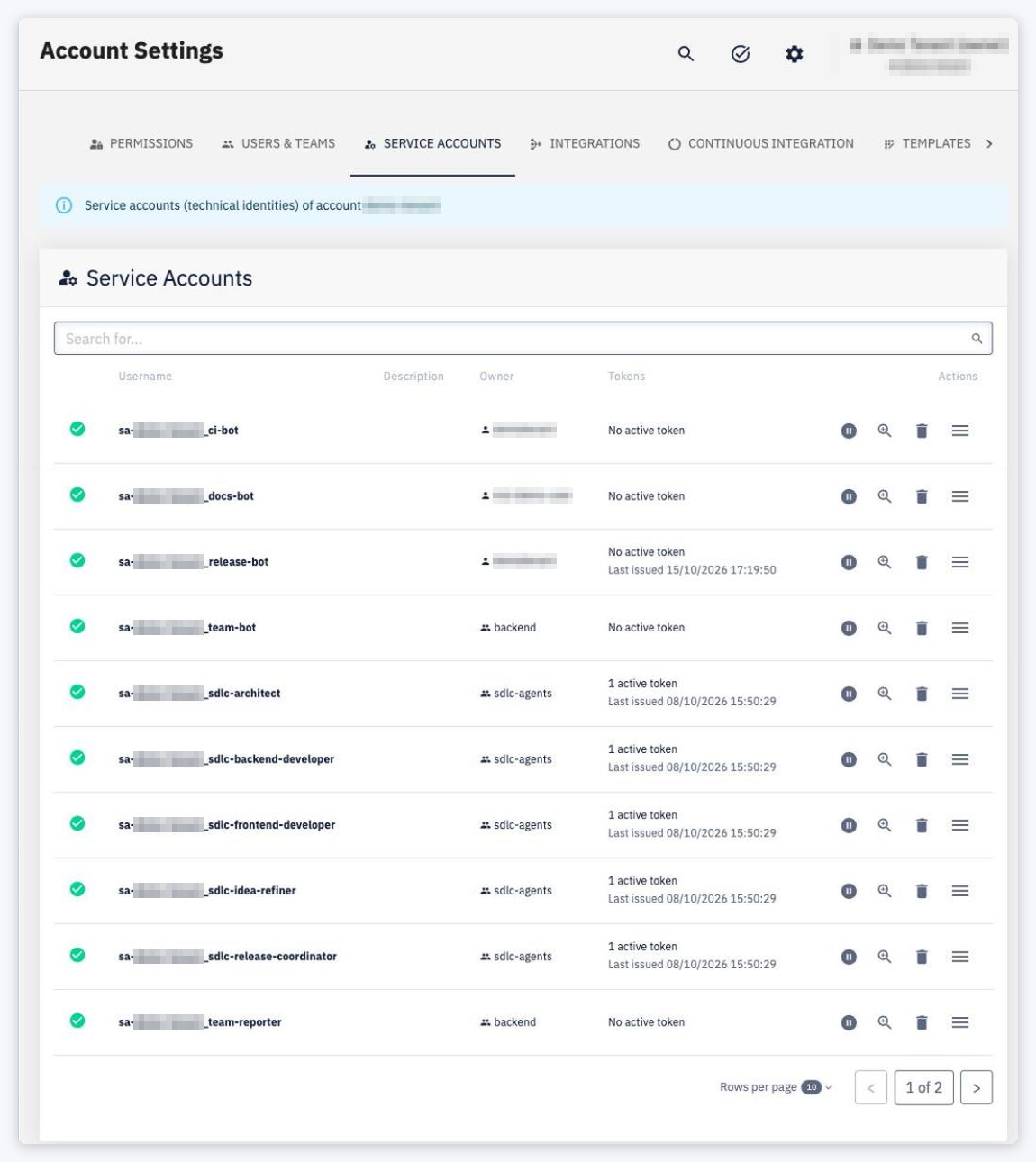
The list shows the state icon, Username, Description, Owner, Tokens (No active token, 1 active token, … with Last issued) and actions — Disable / Enable, detail, delete. Actions are available to the service account's managers.
Identity
| Property | Value |
|---|---|
| Name | 3–40 characters: lowercase letters, digits and single dashes, starting and ending with a letter or digit; unique in the account |
| Username | sa-<accountId>_<name> — shown under the name field while creating; used in tokens (preferred_username), permission listings and integrated tools |
<username>@service-accounts.codenow.com — a technical address, not a mailbox |
The service account gets its own identity in the account's integrated tools that manage identities (for example CodeNOW GitLab and Artifactory), just like a user.
Creating a service account
Create Service Account opens a page with two cards:
- Service Account — Name, Owner and Description. The owner is Me (<username>) or one of your teams; account Admins see all teams, other users only teams where they are Admin or Service Account Manager.
- Permissions — the levels to grant. Only levels the selected owner has are offered (Rows below are what <owner> has. Nothing is granted until you add it.). Changing the owner after picking levels clears them.
Click Create service account. The permissions are granted right after the account is created; progress is shown on its PERMISSIONS tab.
Owner
Every service account has an owner — a user or a team. The owner sets the limit of what the service account may do and decides who manages it; it does not grant anything by itself.
A team-owned service account belongs to its owning team and gets the team's permissions on other resources according to its permission mode. It holds no permission on the team itself (it can never manage a team) and cannot be a member of any other team. A user-owned service account belongs to no team.
Who manages a service account
Managing means editing, changing the owner, managing permissions, tokens, API keys, secrets and integrations, disabling and deleting.
| Owner | Managers |
|---|---|
| User | that user, account Owner/Admin |
| Team | team members with the Admin or Service Account Manager level on the owning team, account Owner/Admin |
- Creating a service account for a team requires the same team level.
- Creating a service account for another user, or handing one over to another user, is reserved for account Owners and Admins.
- Changing the owner does not affect existing tokens or running deployments.
Permission modes
What a service account may do is always limited by its owner's current permissions:
- team owner — the grants made to that team;
- user owner — everything the user can do right now: own permissions, their teams' permissions and what everyone in the account has (for an account Owner/Admin everything).
| Mode (UI) | Effective permissions | Available for |
|---|---|---|
| Custom (default) | Only its own grants, limited to what the owner holds. A grant must fit the owner's permissions when it is made; a grant on all resources of a type requires the owner to hold that too. | user- and team-owned |
| Follow team | Exactly the owning team's permissions, now and as they change. Read only — no direct grants. | team-owned only |
- The limit is evaluated on every request, so a service account loses whatever its owner loses.
- Grants that no longer fit (for example after an owner change) are kept but have no effect — marked ⚠︎ and listed under No effect (n), from where you can remove them.
- Switching from Follow team to Custom lets you start with the team's levels or empty (Saved empty, agents using this service account lose all access.).
- Moving a service account to a user owner switches it to Custom; use Copy owner's permissions to start from the owner's levels.
- If the owner is deleted, the service account has no effect at all until it gets a new owner (its grants are kept).
The Permissions tab
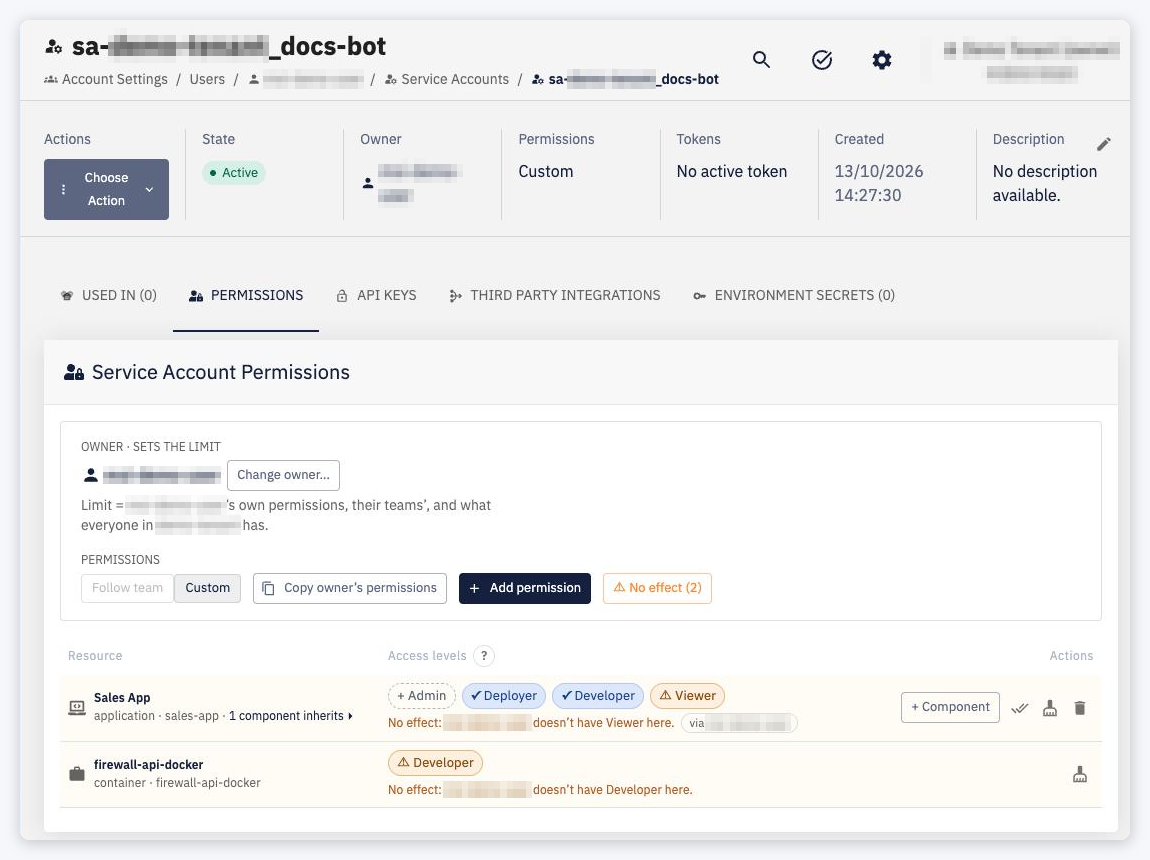
The Service Account Permissions card shows the owner (Owner · sets the limit) with Change owner…, the mode switch (Follow team / Custom), Copy owner's permissions, Add permission and No effect (n). Each row is a resource with its access levels:
| Chip | Meaning |
|---|---|
| ✓ Granted | Held by the service account. Click to revoke. |
| ↳ Inherited | Comes from All … or the parent resource. Click to grant directly. |
| + Available | The owner has it. Click to grant. |
| ⚠︎ No effect | Granted, but the owner does not have it. Click to remove. |
| ✎ Unsaved / − Removed | Pending change. Click to undo. |
| ✕ Failed | Saving failed — see the row. |
Changes — including an owner or mode change — are collected as a draft and saved together with Save changes; one save runs one Update Service Account job. While it runs, editing is locked and the banner links to the job.
Service account detail
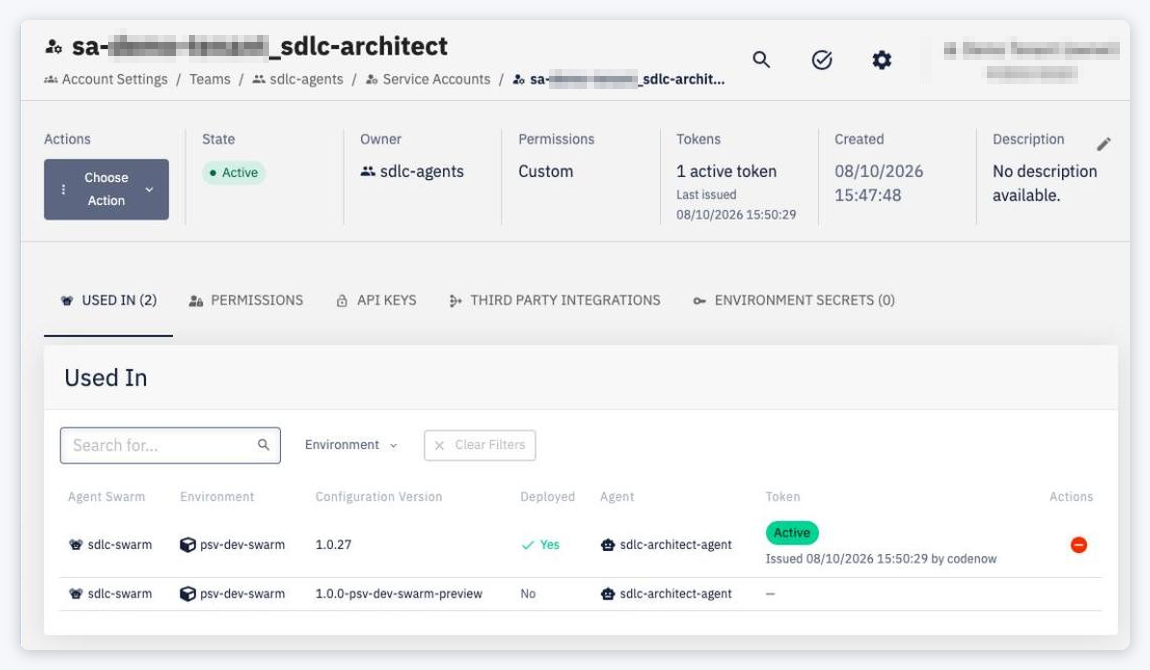
The title is the username. Tiles: Choose Action, State (Active / Disabled), Owner, Permissions (Custom or Follows team …), Tokens, Created, Description.
Actions: Edit Service Account (description), Add Secret, Revoke All Active Tokens, Disable / Enable Service Account, Delete Service Account. The owner and the permission mode are changed on the PERMISSIONS tab.
| Tab | Content | Visible to |
|---|---|---|
| USED IN | Deployments using the service account: agent swarm, environment, configuration version, deployed, agent, token state | anyone who can open the page |
| PERMISSIONS | Permission modes and grants | managers |
| API KEYS | API keys of the service account | managers |
| THIRD PARTY INTEGRATIONS | Connected identities and accounts in external systems — the same as a user's. Sign in to the provider as the service account's technical account, not your personal one. | managers |
| ENVIRONMENT SECRETS | Secrets injected into agents | managers |
Tokens
Tokens are issued automatically when an agent is deployed — one per deployment of an agent:
- a redeploy reuses the deployment's token (so the agent's
AI_GATEWAY_REFRESH_TOKENstays the same); - undeploying the agent, removing it from the swarm or switching it to another service account releases the token.
The tokens are long-lived refresh tokens without an expiry date. Access tokens obtained with them are valid for 10 minutes. In USED IN each token is Active, Released (the deployment was undeployed or redeployed; the token idles out within 30 days or at the next revoke) or Revoked.
- Revoke token on a row stops that agent's token immediately; the agent gets a new token on its next deployment.
- Revoke All Active Tokens cuts off every deployment using the service account until it is redeployed; the service account stays enabled.
API keys
An API key whose subject is a service account works like a personal API key — Generate API key (name, expiration), Suspend / Resume, delete — but API keys act with this service account's permissions, never those of the user who created them:
- its own grants and those of its team (per the permission mode), never Owner/Admin;
- where it has no grant, details and writes return
403and lists are filtered.
The key is shown only once after it is generated. Typical use: give an automation or an external agent least-privilege access to the CodeNOW API or the MCP server.
Environment secrets
Secrets are sensitive values mapped as environment variables into every agent the service account is assigned to. Use Add Secret:
| Field | Rules |
|---|---|
| Environment Variable Name | Upper-case letters, digits and underscores (names are case-sensitive), not starting with a digit; at most 128 characters. Reserved names are refused. |
| Description (optional) | At most 1024 characters |
| Value | Required, not blank, up to 64 KiB (UTF-8), multi-line allowed. Write-only — the value can't be viewed after saving. When updating, leave it empty to keep the current value. |
Changes apply on the next deployment of agents using the service account. An expired secret blocks the deployment of agents that use the service account. If a secret has the same name as an environment variable of the agent component (for example from codenow/config/environment-variables), the secret wins; the deployment reports it as a warning.
Reserved names
CodeNOW sets these variables in the agent itself (see Agent Runtime), so a secret cannot use them — saving such a secret is refused with <NAME> is reserved for CodeNOW — agents would never receive it.
| Rule | Names |
|---|---|
| Prefix | AI_GATEWAY_, OIDC_, CONSOLE_, CN_, CODENOW_ |
| Exact name | A2A_AGENTS, AGENT_PUBLIC_URL |
| Suffix | _A2A_URL |
Secrets saved before this rule was introduced may still use such a name. They are not injected and the list marks them with Reserved name — not passed to agents. Rename it. Their update drawer unlocks the name field (otherwise the name is read-only on update) and they can't be saved until renamed.
Using a service account in an agent
When saving an agent's configuration you can select only service accounts that you own, or that are owned by a team you are a member of; account Owners and Admins can select any service account. Disabled service accounts are shown but cannot be selected. The check is made when the configuration is saved, not when it is deployed — someone else can deploy the configuration as saved.
Deploying an agent fails when its service account does not exist, is disabled, or has expired secrets.
Disable and delete
- Disable — Refresh tokens are revoked immediately and API keys stop working; already issued access tokens stay valid until they expire (max 10 minutes). A disabled service account gets no new tokens or API keys. Enable reverses it. Agents referencing a disabled service account fail on their next deploy.
- Delete — confirm by typing the username. Deleting revokes all tokens, removes all stored secrets and credentials, deletes the identity in CodeNOW and in the integrated tools, and removes its permissions. It does not check whether deployed agents still use the service account — their calls simply start failing, so switch those agents to another service account first.
- Deleting a user also deletes the service accounts the user owns.
- A team that owns service accounts cannot be deleted — delete them or move them to another owner first.